Asterix
Asterix (ver EAD) (Konami, 1992) · Manual · 6 pages · 10 sections · original scan
KONAMI"
THE VIDEO GAME
NG ©1992 LES EDITIONS ALBERT RENE/GOSCINNY-UDERZO
a)
WARNING
ASTERIX® & ©1992 LES EDITIONS ALBERTRENE/GOSCINNY-UDERZO ALL RIGHTS RESERVED. LICENSED TO KONAMI CO.,LTD. KONAMI® IS A TRADEMARKS OF KONAMI CO.,LTD. ©1992 KONAMI All Rights Reserved.
PN.950380
Technical Information
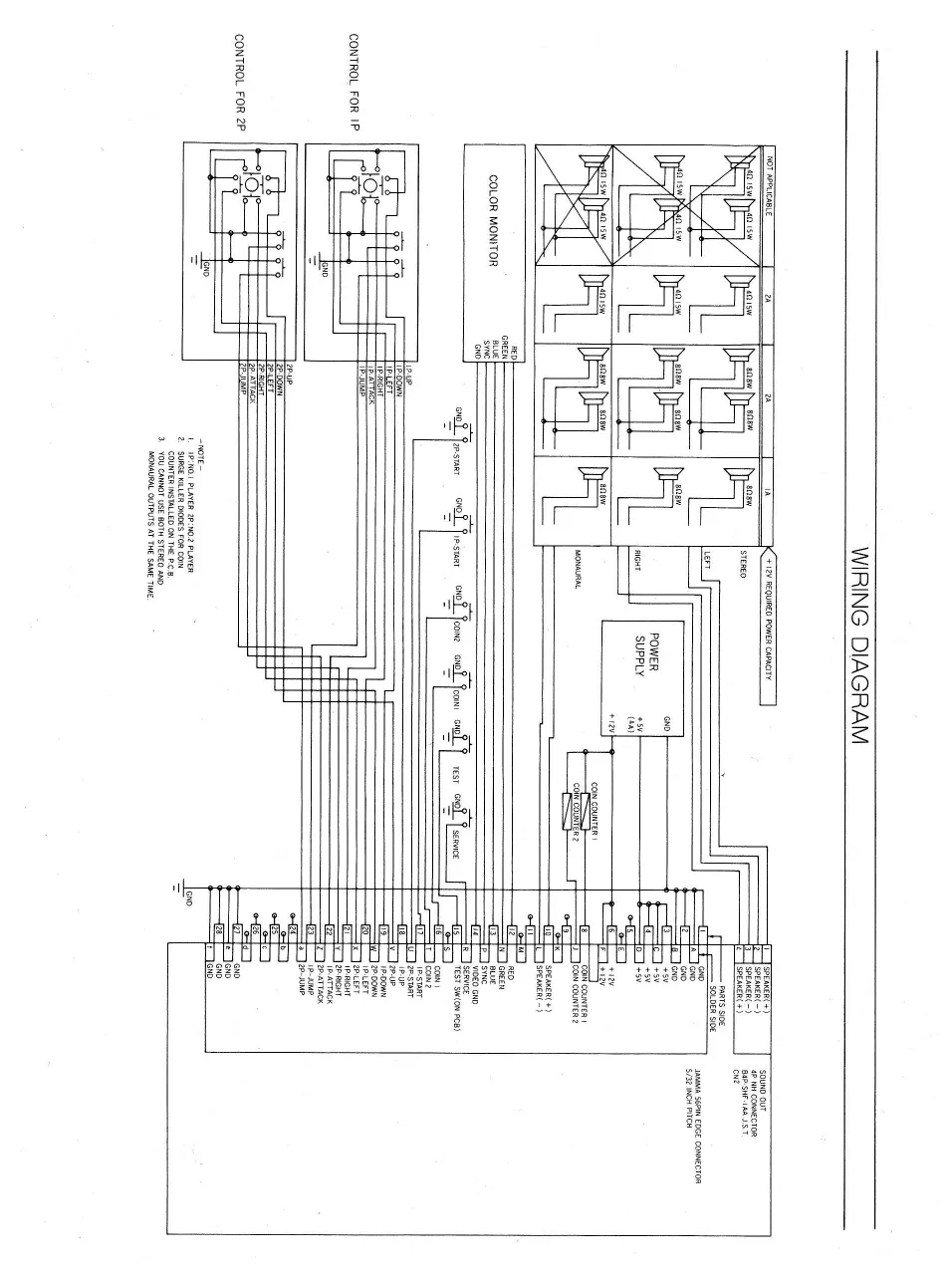
(Required power capacity GND-Vcc 5V 4A or more GND(+ 12V) + See the Wiring Diagram (2}Output R(red) analog, positive G(green) analog, positive B(blue) analog, positive SYNC. H-V complexed, negative (3)The monitor should be horizontally installed. (4)Use the volume knob on the PCB to adjust sound level. Turn the knob clockwise for increased volume. In monaural output mode, use the left volume knob. (5)Handle with care.
Play Instruction
© 1 or 2 players can play at the same time. Second player can join in at any time. © Choose the character you want to control out of the two characters: ASTERIX or OBELIX. © Deposit coins and press start button, and the select screen will appear. Use the joystick to select character, and press ATTACK or JUMP button to start © Control your character's movement using the 8-way joystick and attack enemies with ATTACK button. Keep pressing ATTACK button, and the player begins to swing his arm. Release the button timingly to strongly damage. the enemies. Use JUMP button to avoid enemy attack, jump up to the upper level, or defeat enemies in the air. @ Press ATTACK button to raise up a knocked-down enemy to slap, swing or throw him, or beat him to the ground. After picking up the enemy, use the joystick to select which technique to use and press ATTACK button again. © Press JUMP button while in the air for a flying kick or attack. @ Push the joystick twice left or right, and the player begins to run. Press ATTACK button while running to crash into and defeat the enemies. @ When two players are playing, if the players attack each other, both players will be damaged. If one of the players runs into the other, however, the other player can crash into the enemies and defeat them, Or, if a player jumps at his partner and JUMP button is pressed again when he is above his partner, the player can make a second jump to fling himself into the enemies. © Special item will appear; Magic Potion for ASTERIX, and Boar Meat for OBELIX. Use ATTACK button to pick them up and destroy all the enemies on the screen. Pick up helmets of Roman troops for bonus points, and fruits for extra energy. © The player's energy will be consumed when attacked by the enemies. When it is used up, you will ose one life. The game is over when you have lost all the lives. © There are 7 stages in all. Continuation is available as many times as desired when Continuation Limit is set at “NO” in the Manual Test mode. When it is set at “YES', continuation is limited up to three times.
Cabinet Information
Use a dual control upright cabinet with a start button, an Sway joystick and two function buttons for each player. Rta [One) Rta
| —7.o | 8 | ue | “ale | SG | 8 |
| BWAY | ATTACK | JUMP | SWAY | aTTack | JUMP |
| JOYSTICK | BUTTON | BUTTON | JOYSTICK | BUTTON | BUTTON |
Self Test
Normal: “OK” will be displayed. Then the game will start. Abnormal: "BAD" will be displayed and self test will repeat. If “17B BAD” is displayed, switch off and switch on again with TEST SWITCH (on the PCB) pressed.
Manual Test -
- HOW TO START After switching on the power, press the TEST SWITCH on the PCB or on the cabinet, and you will get the MAIN MENU of the Manual Test. <NOTE> Switching on with TEST SWITCH pressed causes the program in the EEPROM to be initialized to default.
- HOW TO RETURN TO THE GAME MODE Select "GAME MODE” on the MAIN MENU then press player 1 START button to return to the game mode,
- ITEMS AND HOW TO SELECT Use player 1 JOYSTICK to select the desired test and press player 1 START button to initiate testing. Press player 1 START button during or at the end of each test to return to the MAIN MENU.
VO CHECK SCREEN CHECK COLOR CHECK SOUND CHECK MASK ROM CHECK GAME OPTIONS COIN OPTIONS GAME MODE
1 PLYR JOYSTICK=SELECT ITEM 41 PLYR START=DO CHECK
(4)EXPLANATION OF THE ITEMS. 1.1/0 CHECK Check all the joysticks and buttons to see "1" when switched on. Press player 1 and 2 START buttons at the same time to return to MAIN MENU.
- SCREEN CHECK Adjust focus, alignment, size, etc. using the cross-hatch screen.
- COLOR CHECK Adjust color brightness so that the specified area will be colorless. 4, SOUND CHECK When “SOUND SCALE CHECK” is selected, a music scale sounds. At "SOUND CODE”, push player 1 JOYSTICK right/left to change sound code.
- MASK ROM CHECK Roms will be checked one after another, and the message “OK” or "BAD" will be displayed on the screen.
- GAME OPTIONS Following screen will appear. Use player 1 JOYSTICK up/down to select the item and push JOYSTICK right/ left to modify setting. Factory settings are shown in green, and modified results in red. (Settings below are not always the factory settings.) After modification is completed, select "SAVE AND EXIT” and press player START button to save and return to MAIN MENU.
| CHARIOTS RACE SELECT GAME OPTIONS
PLAYER'S LIFE 1 COIN 3 LIVES DIFFICULTY LEVEL. 5/MEDIUM HARD. VIDEO SCREEN FLIP NORMAL SOUND OUTPUT MONAURAL. SOUND IN ATTRACT MODE ON AFTER STAGE 1
CONTINUATION LIMIT. YES
FACTORY SETTINGS SAVE AND EXIT EXIT
4 PLYR JOYSTICK UP/DOWN=SELECT OPTION | 41 PLYR JOYSTICK RIGHT/LEFT=MODIFY SETTING Select from 1 to Q lives. Select out of 8 levels. NORMAL’ or “UPSIDE DOWN" STEREO" or “MONAURAL” +"ON" or “OFF” ‘Bonus stage ‘AFTER STAGE 1" or “AFTER STAGE 2” ‘Continuation “NO-without limit” or “YES-maximum of three times”
All the settings return to default. Save the modified settings
- If you select “EXIT” instead of “SAVE AND EXIT” after modifying some settings, the message appears; “YOU DID NOT SAVE. DO YOU WANT TO SAVE? YES/NO”. When you choose “YES”, the screen shows. “NOW SAVING” and returns to MAIN MENU. If you select "NO”, “NO MODIFICATION” is shown and then MAIN MENU appears.
- COIN OPTIONS Selecting this item, following screen will appear. On the cabinet with two coin slots, select "COMMON" or “INDEPENDENT” for coin mechanism. In "COMMON" setting, coin setting must be done for each coin slot.
COIN OPTIONS
FREE PLAY NO COIN MECHANISM COMMON COIN SLOT 1 1 COIN 1 CREDIT COIN SLOT 2 1 COIN 1 CREDIT
FACTORY SETTINGS SAVE AND EXIT EXIT
1 PLYR JOYSTICK UP/DOWN=SELECT OPTION 1 PLYR JOYSTICK RIGHT/LEFT=MODIFY SETTING "COMMON" or "INDEPENDENT"
(Same as above “GAME OPTIONS”
When “INDEPENDENT” coin mechanism is selected, the left coin slot will be for player 1, the right one for player 2. On this setting, "PREMIUM START” setting is available; you can set the play fee for starting higher than the play fee for continuation (2 coin start and 1 coin continue, for example).
COIN OPTIONS
FREE PLAY NO COIN MECHANISM INDEPENDENT
PREMIUM START YES 1
STARTING 2COINS 1 CREDIT CONTINUATION 1 COIN 1 CREDIT
FACTORY SETTINGS SAVE AND EXIT. EXIT
1 PLYR JOYSTICK UP/DOWN=SELECT OPTION 1 PLYR JOYSTICK RIGHT/LEFT=MODIFY SETTING "NO" or “YES"1" to “YES 4° (The number means the EXTRA coins necessary)
||-sane as "GAME OPTIONS"
When you want "PREMIUM START” setting, choose the number of extra coins necessary for starting, then decide the coin setting for continuation. The number of coins for starting will be the sum of both numbers. If you do not want premium start setting, the number of coins necessary for starting and continuation will be the same,
2% COIN SETTING OPTIONS [.COIN(S) a[41[1]4 I) IN) {creoit(s) [| 7[2|/3]4|5/6|7 Kojo]
This page is a drawing, shown as the original scan.